

Microsoft Agent Framework for .NET (part 2): How to use IChatClient with Azure Foundry and Ollama in .NET
IChatClient is the core of Microsoft Agent Framework. Let’s see how to configure it with Azure Foundry and Ollama.
Table of Contents
Just a second! 🫷
If you are here, it means that you are a software developer. So, you know that storage, networking, and domain management have a cost .
If you want to support this blog, please ensure that you have disabled the adblocker for this site. I configured Google AdSense to show as few ADS as possible - I don't want to bother you with lots of ads, but I still need to add some to pay for the resources for my site.
Thank you for your understanding.
- Davide
If you are adding AI features to a .NET application today, you have lots of options. You can store models on Azure Foundry, run a local model with Ollama, or use both of them depending on the environment you are running in.
All this flexibility is great, but the best way to reach it is through abstractions.
Lucky for us, Microsoft.Extensions.AI, the library that is one of the foundations of Microsoft Agent Framework, gives us a provider-agnostic abstraction for chatting with AI models: IChatClient.
In this article, we will build a small AI assistant that can answer questions about board games. We will configure it once, inject it with Dependency Injection, and then run the exact same business logic on top of either Azure OpenAI or Ollama.
This article is part of a series on Microsoft Agent Framework. You can read the other articles here:
- Microsoft Agent Framework for .NET (part 1): what it is, how it works, and when to use it
- Microsoft Agent Framework for .NET (part 2): How to use IChatClient with Azure Foundry and Ollama in .NET
- Microsoft Agent Framework for .NET (part 3): Custom Agents, for building a chat with custom instructions
- Microsoft Agent Framework for .NET (part 4): static methods, instance methods, MCP Clients as custom Agent tools
IChatClient, the king of Microsoft Agent Framework
The IChatClient abstraction gives you a consistent API for chat-based models, in which you send and receive messages, while abstracting away the provider-specific details.
This abstraction allows you to properly architect your application without caring whether the actual provider is Azure Foundry, Ollama, or something else. This is particularly important when designing for systems that may evolve.
Without an abstraction, your code often ends up directly coupled to a specific SDK. And that usually means:
- provider-specific request objects everywhere
- provider-specific authentication logic scattered into the rest of the app
- more work when you want to swap providers
But, well, nothing new if you’ve ever had to change an external implementation of something (I remember when I swapped a Gremlin DB with a MongoDB! Lucky for us, I came up with a sort of ports-and-adapters architecture before it was even a thing!).
With IChatClient, the provider-specific part is mostly reduced to composition and configuration. So, our board game advisor will depend on IChatClient, not any specific implementation that depends on the AI provider.
We will build a simple Console Application that uses IChatClient to ask questions about board games. Just remember that it has to use at least .NET 8.
The NuGet packages required for IChatClient, Azure Foundry, and Ollama
To use IChatClient with Azure Foundry and Ollama, we need a few NuGet packages:
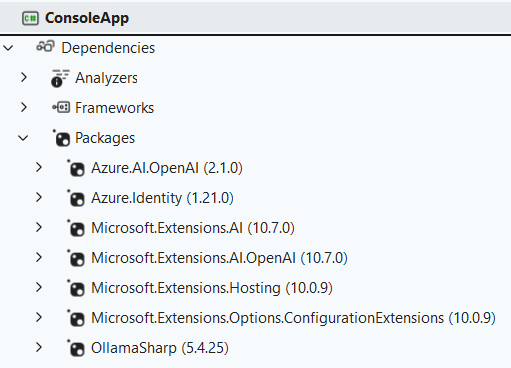
I know, it’s not easy to read the packages from that image. If you want to just copy-paste them into your .csproj, here they are:
<ItemGroup>
    <PackageReference Include="Azure.AI.OpenAI" Version="2.1.0" />
    <PackageReference Include="Azure.Identity" Version="1.21.0" />
    <PackageReference Include="Microsoft.Extensions.AI" Version="10.7.0" />
    <PackageReference Include="Microsoft.Extensions.AI.OpenAI" Version="10.7.0" />
    <PackageReference Include="Microsoft.Extensions.Hosting" Version="10.0.9" />
    <PackageReference Include="OllamaSharp" Version="5.4.25" />
</ItemGroup>
As you see, these NuGet packages fall into 3 categories:
- packages for Azure integration:
Azure.AI.OpenAIandAzure.Identity; - packages for Microsoft Agent Framework:
Microsoft.Extensions.AIandMicrosoft.Extensions.AI.OpenAI; - packages for Ollama integration:
OllamaSharp.
Two of them are worth a special mention:
Microsoft.Extensions.AI: contains the abstractions such asIChatClient;Microsoft.Extensions.AI.OpenAI: lets us adapt the Azure OpenAI/Azure Foundry chat client toIChatClientvia.AsIChatClient().
IChatClient and Ollama: from installation to integration
Ollama is an application that allows you to run LLMs and SLMs locally without the necessity of cloud services (even though you can get models from the cloud without running them locally, for example if you don’t have a powerful GPU).
This makes Ollama great for:
- local development: no need for an internet connection or for a cloud subscription;
- offline demos and local experiments: you can run several models locally to find out the best for your use case, before committing to a cloud provider;
- privacy-sensitive experiments where you want prompts to stay on your machine;
- avoiding cloud cost during early prototyping.
The trade-off is that you are limited by the power of your local machine and by the quality and size of the local model you choose.
Also, do not expect a tiny local model to behave exactly like a stronger cloud-hosted model. Sometimes the answer quality is excellent; sometimes the model confidently invents data and information, hallucinating.
Download Ollama and pull a model
For local development, you can download Ollama from the official website.
It comes with some pre-installed AI agents (like Claude Code, OpenClaw, Copilot CLI) but you can also use it to download LLMs and SLMs and run them locally.
You can find a list of available models on the Ollama Models page. Once you find the one you like, you can pull it to your local machine with the command:
ollama pull <name_of_the_model>
For our examples, since we don’t really need a huge model, we can use a lightweight one called phi3:mini. You can pull it to your local machine with the command:
ollama pull phi3:mini
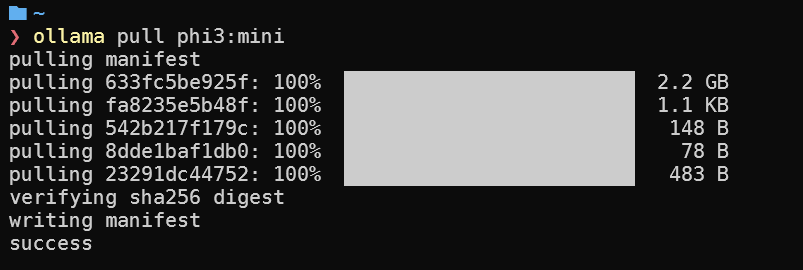
As you can see from the image above, even if we downloaded a small model, it is still more than 2GB in size. So, make sure you have enough disk space before pulling a model.
To verify that the installation was successful, you can check that the model is working by opening Ollama’s UI, selecting phi3:mini as a model and asking any question.
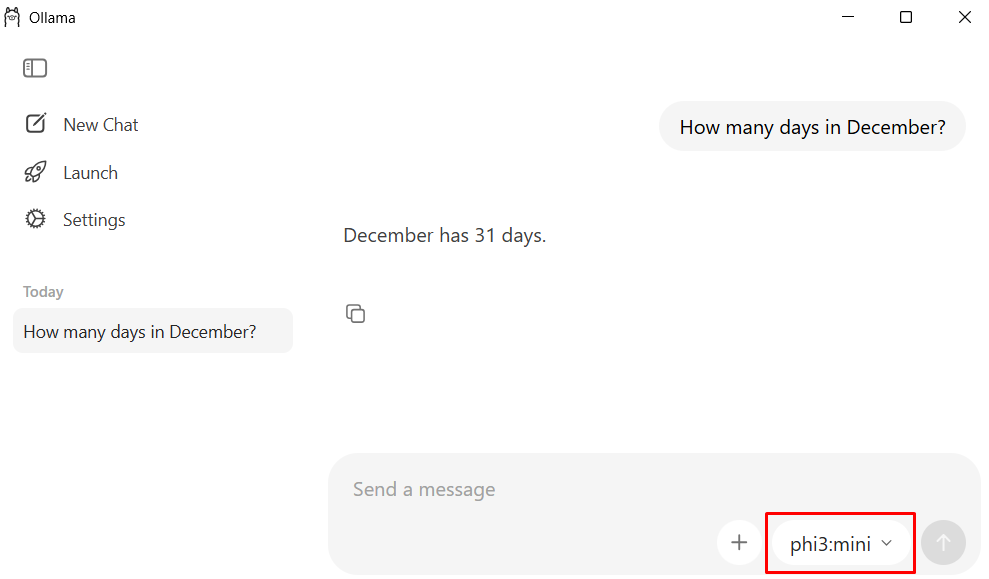
Once you have it installed and a model pulled, you can check that it is running by opening your browser and navigating to http://localhost:11434. You should see a page like this one:
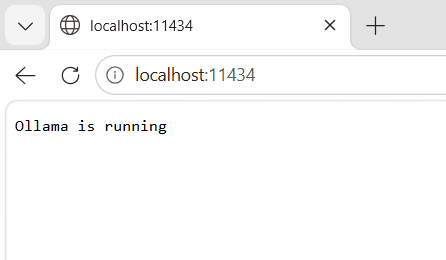
I honestly don’t know how to change Ollama’s default endpoint. If you do, let me know! For now, we will just use the default endpoint.
Configure IChatClient to use Ollama
Once you have Ollama installed and the model ready in your local machine, you can just initialize a new OllamaApiClient with the endpoint and model name, and then use it as an IChatClient.
static IChatClient CreateOllamaChatClient(string endpoint, string model)
{
    if (string.IsNullOrWhiteSpace(endpoint))
    {
        throw new InvalidOperationException("Endpoint is required.");
    }

    if (string.IsNullOrWhiteSpace(model))
    {
        throw new InvalidOperationException("Model is required.");
    }

    return new OllamaApiClient(new Uri(endpoint), model);
}
The second parameter is the model name, which is the name of the model you pulled locally. In our example, it is phi3:mini, but it can be any other model you have pulled.
So, once you have both the endpoint and the model name, you can create an IChatClient that uses Ollama and inject it via Dependency Injection:
IChatClient chatClient = CreateOllamaChatClient("http://localhost:11434", "phi3:mini");
builder.Services.AddSingleton(chatClient);
Let’s keep this chatClient in mind, and we will see how to use it in another section of this article.
IChatClient and Azure Foundry: from configuration to integration
Azure Foundry is a cloud service that allows you to host and run AI models in the cloud. With Azure Foundry you can deploy, manage, and scale AI models without worrying about the underlying infrastructure.
How to create an Azure Foundry resource and a model deployment
On your Azure portal, you can create a new Azure Foundry resource. You can find the service by searching for “Azure Foundry” in the search bar.
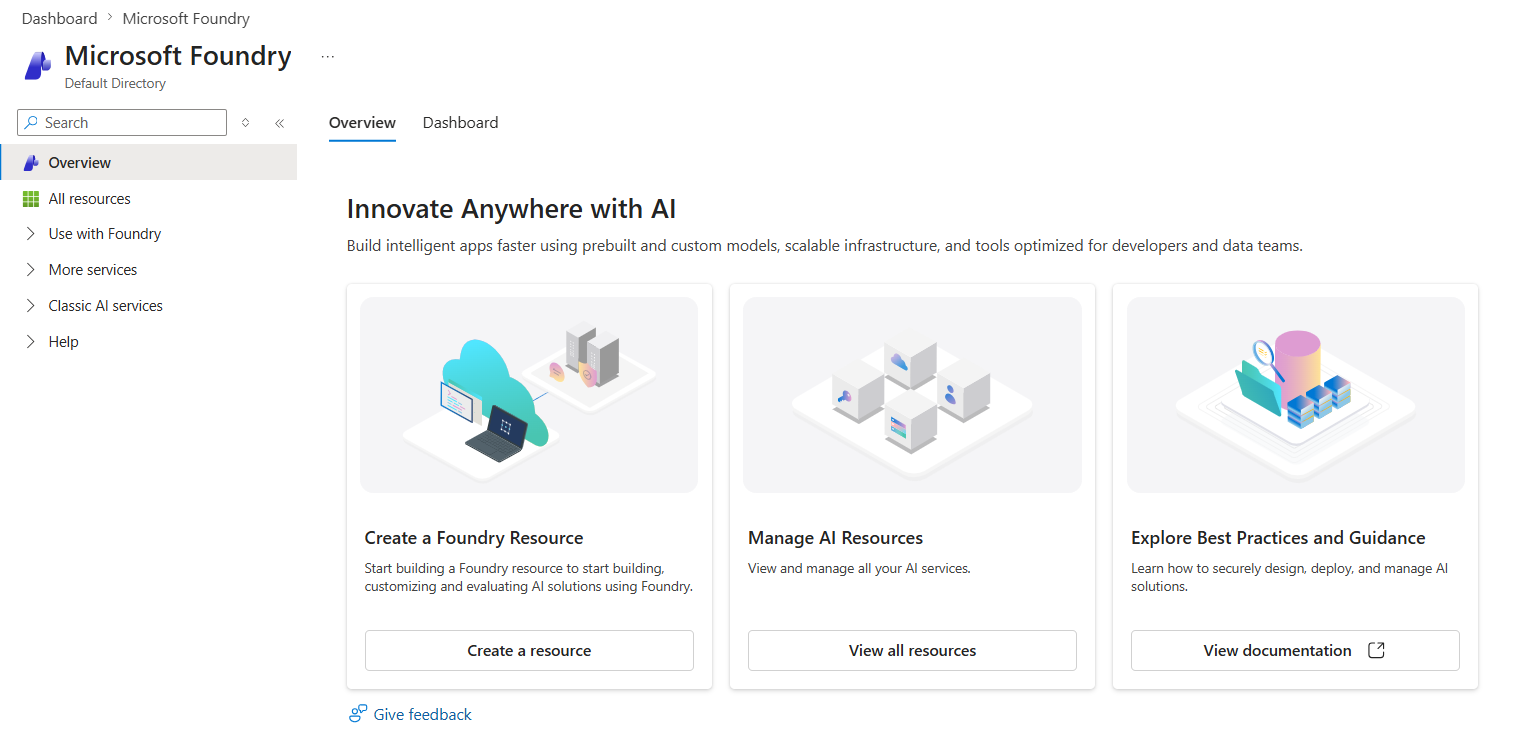
Then you can select the Subscription, Resource group, and Region, and other stuff. And, most importantly, you need to create a “project” that will contain your model deployments. You can create a new project or use an existing one.
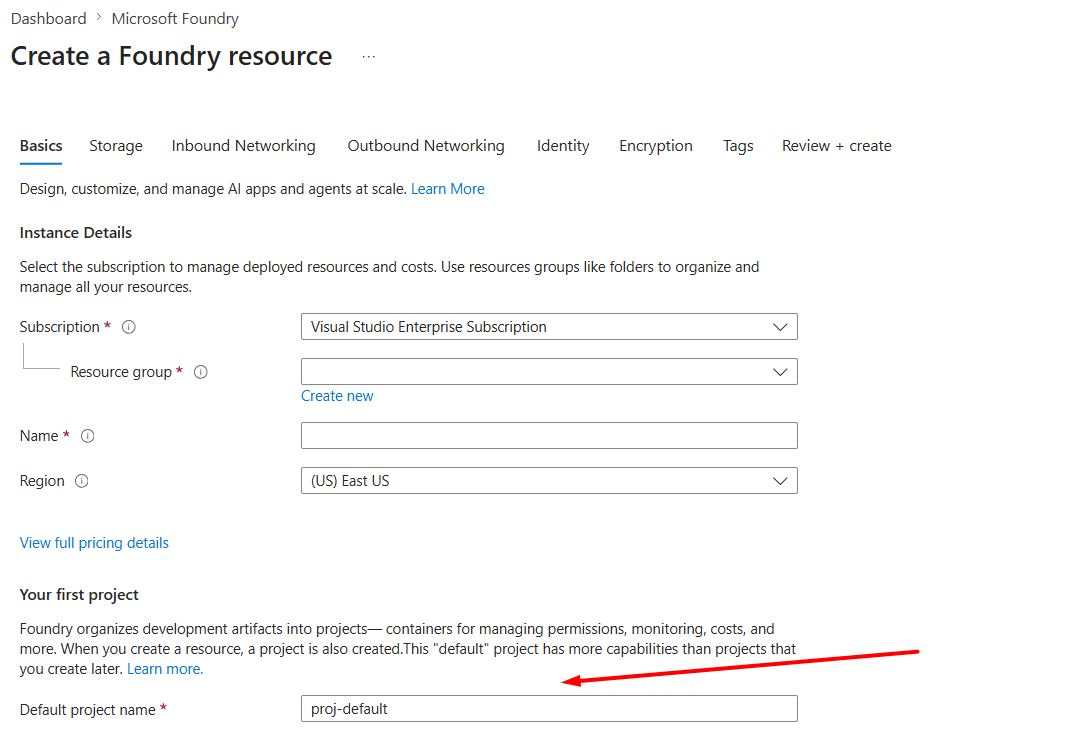
Once you’re done, you can access the Azure Foundry portal.
From there, you can create a new deployment for the model you want to use.
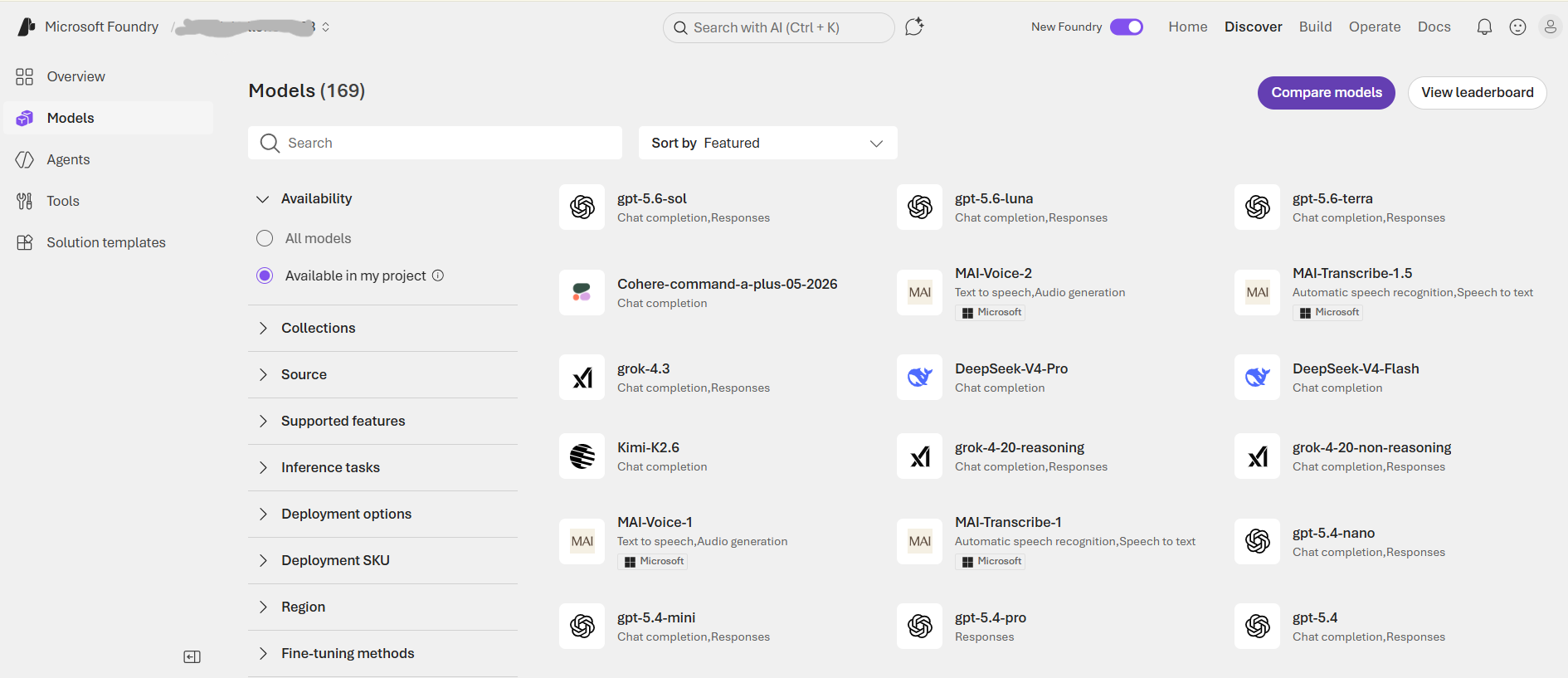
I will use gpt-5.4-mini as the model for this example. Once you click its icon from the screen below, you can see some more details of the model:
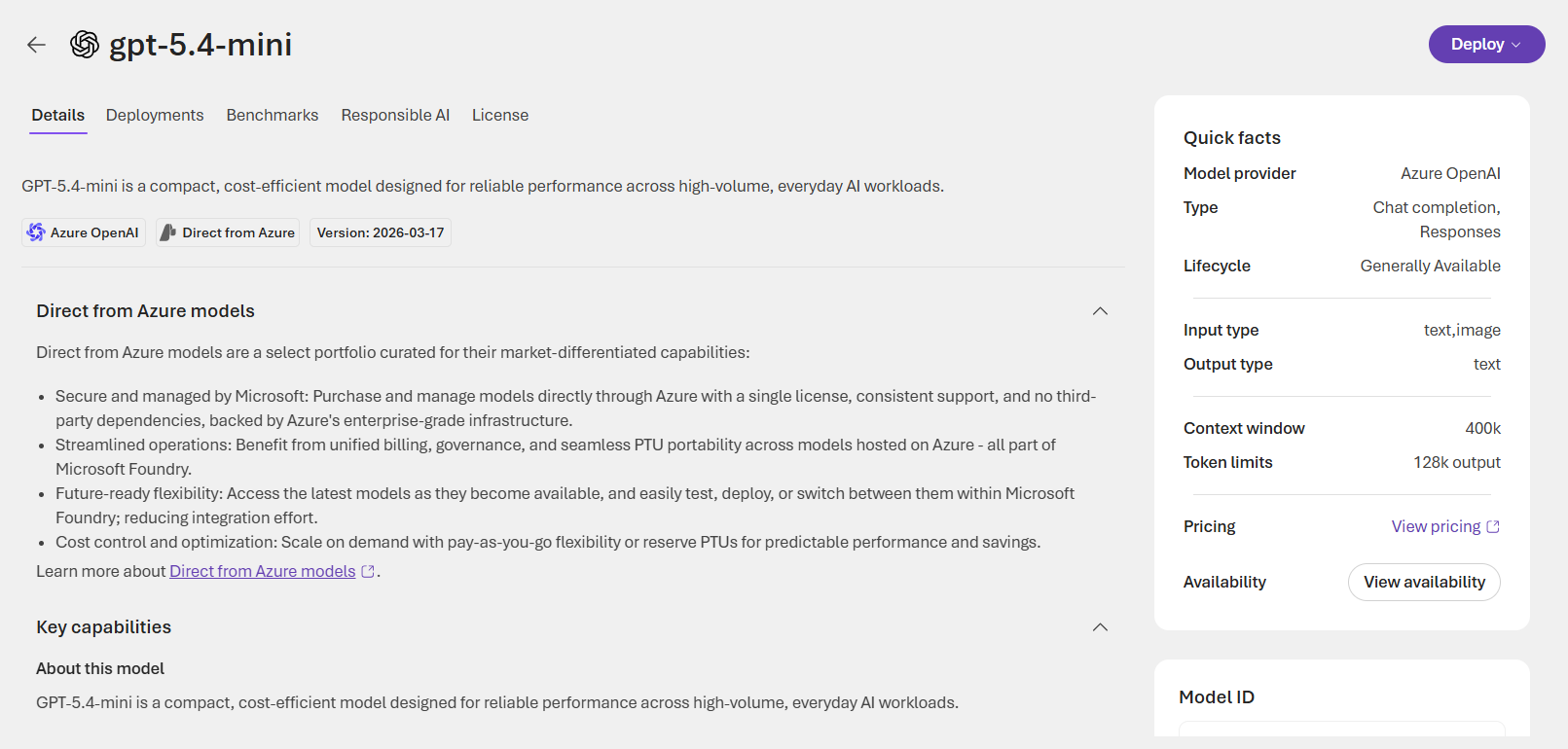
and, if everything is fine, you can create a deployment for it.
Once done, you need to retrieve the deployment name, which is usually the name of the model. You can find it in the “Models” section of your Azure Foundry project.
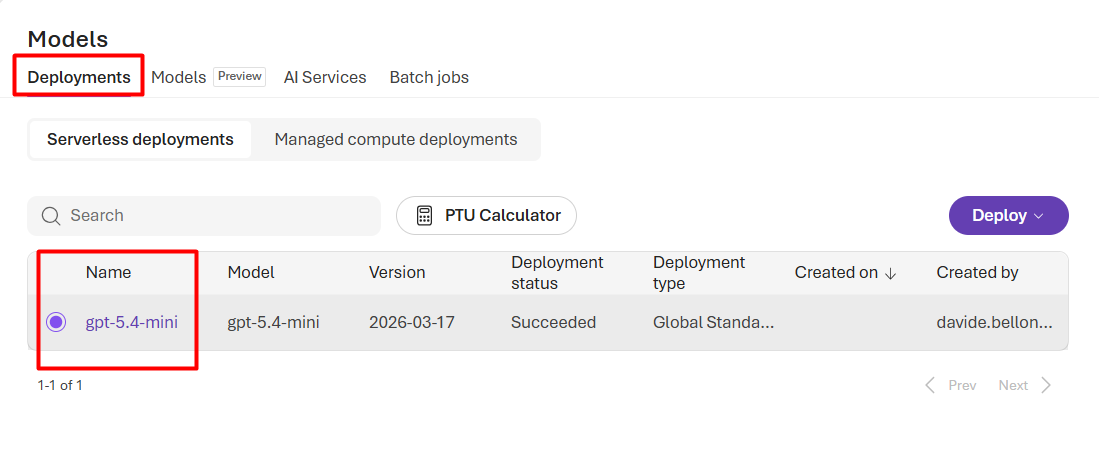
Then, head back to the Azure Foundry homepage. You will find the Azure OpenAI endpoint (which looks like https://<your-project-name>.openai.azure.com/openai/v1) and the API key:
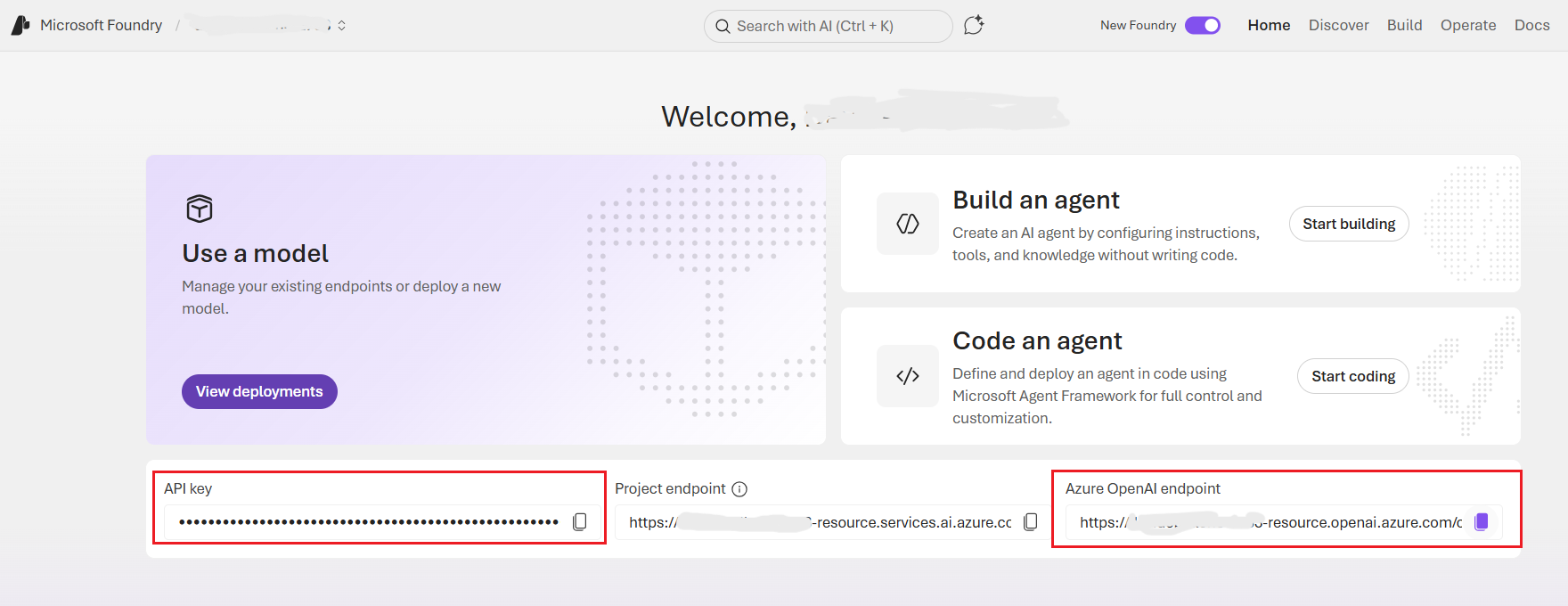
Store these values somewhere: we are going to use them in the next section!
Configure IChatClient to use Azure Foundry via the Azure.OpenAI SDK
Once we have the endpoint, deployment name, and API key, we can create an IChatClient that uses Azure Foundry. I decided to call the method name “CreateAzureOpenAIChatClient” to make it clear that it is for Azure OpenAI, even though the endpoint is for Azure Foundry. The reason is that Azure Foundry is built on top of Azure OpenAI, so the SDK we use is the same.
static IChatClient CreateAzureOpenAIChatClient(string endpoint, string deploymentName, string? apiKey = null)
{
    if (string.IsNullOrWhiteSpace(endpoint))
    {
        throw new InvalidOperationException("Endpoint is required.");
    }

    if (string.IsNullOrWhiteSpace(deploymentName))
    {
        throw new InvalidOperationException("DeploymentName is required.");
    }

    Uri endpointUri = new(endpoint);

    AzureOpenAIClient client = string.IsNullOrWhiteSpace(apiKey)
        ? new AzureOpenAIClient(endpointUri, new DefaultAzureCredential())
        : new AzureOpenAIClient(endpointUri, new ApiKeyCredential(apiKey));

    return client
        .GetChatClient(deploymentName)
        .AsIChatClient();
}
The very last line is incredibly important: AsIChatClient() adapts the Azure OpenAI chat client to the IChatClient abstraction. In fact, GetChatClient(...) gives us the Azure-specific chat client, while .AsIChatClient() wraps it behind the Microsoft.Extensions.AI abstraction.
Now, you can create an IChatClient that uses Azure Foundry and inject it via Dependency Injection:
IChatClient chatClient = CreateAzureOpenAIChatClient("https://<your-resource-name>.openai.azure.com", "your-deployment-name", "your-api-key");

builder.Services.AddSingleton(chatClient);
There’s something really important to remember: while the endpoint you see in the Azure Foundry homepage is usually something like https://<your-resource-name>.openai.azure.com/openai/v1, the endpoint you need to use in your code must not end with /openai/v1, otherwise you will get a 404 (not found) error.
Asking questions to the IChatClient
Now that we have a generic IChatClient that works both for Ollama and Azure OpenAI, we can create a service, named BoardGameAssistant that uses it.
internal class BoardGameAssistant
{
    private readonly IChatClient _chatClient;

    public BoardGameAssistant(IChatClient chatClient)
    {
        _chatClient = chatClient;
    }

    internal async Task<string> AskAsync(string question)
    {
        List<ChatMessage> messages =
        [
            new(ChatRole.System, "You are a concise board game expert. Answer questions about rules, recommendations, complexity, and player counts. If you are unsure, say so instead of inventing details."),
            new(ChatRole.User, question)
        ];

        ChatOptions chatOptions = new()
        {
            Temperature = 0.2f,
            MaxOutputTokens = 300
        };

        ChatResponse response = await _chatClient.GetResponseAsync(messages, chatOptions);
        return response.Text ?? "I could not generate an answer.";
    }
}
You can set it up by specifying its role and its characteristics. In this case, I asked it to be a concise board game expert, and to answer questions about rules, recommendations, complexity, and player counts. I also asked it to say “I don’t know” instead of inventing details.
You can also set some chat parameters, such as:
- the temperature is the number that controls how creative the model is: the lower, the less creative; the higher, the more creative.
- the maximum number of output tokens: this parameter controls how long the answer can be.
Then, you can ask the assistant questions like:
BoardGameAssistant assistant = host.Services.GetRequiredService<BoardGameAssistant>();

string question = "How many players can play Azul?";

Console.WriteLine($"[[Question]]: {question}");

var response = await assistant.AskAsync(question);

Console.WriteLine($"[[Answer]]: {response}");
And the result will be something like this:

When should you use Azure OpenAI, and when should you use Ollama?
There is no universal winner here. As always, it all depends on the scenario.
As a rule of thumb, choose Azure OpenAI when:
- you need managed cloud infrastructure
- you want centralized authentication and governance
- you care about easier scaling and production deployment
- you want stronger hosted models without depending on local hardware
and choose Ollama when:
- you want local development with zero cloud dependency
- you are experimenting and want to keep costs low
- you need something that works even without internet access
- you want to prototype the app architecture before picking the final cloud provider
Thanks to IChatClient, you can easily switch between the two providers without changing your business logic. You can even use both in the same application, depending on the environment or configuration.
Further readings
If you want to learn more, here are a few useful references:
🔗 Microsoft.Extensions.AI libraries overview | Microsoft docs
🔗 Use the IChatClient interface | Microsoft docs
🔗 DefaultAzureCredential class | Microsoft docs
🔗 Dependency injection in .NET | Microsoft docs
🔗 Chat with a local AI model using .NET | Microsoft docs
This article first appeared on Code4IT 🐧
If you want more background on configuration and DI in console apps, you can also read:
🔗 3 (and more) ways to set configuration values in .NET | Code4IT
🔗 How to add Dependency Injection, Configurations, and Logging in a .NET Console Application | Code4IT
Finally, if you want to use different implementations of a service depending on the current HTTP request (like using Ollama if the incoming HTTP request contains a specific header), you can read:
🔗 How to resolve dependencies in .NET APIs based on current HTTP Request | Code4IT
Ah, and don’t forget to check out the other articles in this series:
- Microsoft Agent Framework for .NET (part 1): what it is, how it works, and when to use it
- Microsoft Agent Framework for .NET (part 2): How to use IChatClient with Azure Foundry and Ollama in .NET
- Microsoft Agent Framework for .NET (part 3): Custom Agents, for building a chat with custom instructions
- Microsoft Agent Framework for .NET (part 4): static methods, instance methods, MCP Clients as custom Agent tools
Wrapping up
In this article, we built a small board game assistant on top of IChatClient, which can use both Azure OpenAI (via Azure Foundry) and Ollama. Clearly, we just scratched the surface of what is possible with IChatClient: you will see much more in the next articles of this series.
We saw that Azure Foundry and Ollama have different setup requirements:
- Azure Foundry needs an endpoint, a deployment name, and authentication via
DefaultAzureCredentialor API key; - Ollama needs a local endpoint and a model name.
But the business logic stayed exactly the same, because it depends only on IChatClient.
And that is the real benefit of Microsoft.Extensions.AI: not some magic AI shortcut, but a cleaner architecture that lets you swap providers without rewriting the core part of your application.
I hope you enjoyed this article! Let's keep in touch on LinkedIn, Twitter or BlueSky! 🤜🤛
Happy coding!
🐧